---
slug: contributing/developer_env/runpod
title: RunPod Development Environment
---
RunPod gives you on-demand cloud GPUs for FastVideo development. It's useful when you need a beefy GPU to test training runs, benchmark inference, or reproduce results without waiting for shared cluster time.
## Prerequisites {#prerequisites}
- A [RunPod](https://www.runpod.io) account with billing configured
- An SSH key pair. If you don't have one, generate it with `ssh-keygen -t ed25519`
- Your public key (`~/.ssh/id_ed25519.pub`) ready to paste into RunPod
## Step 1: Create a Pod {#step-1-create-a-pod}
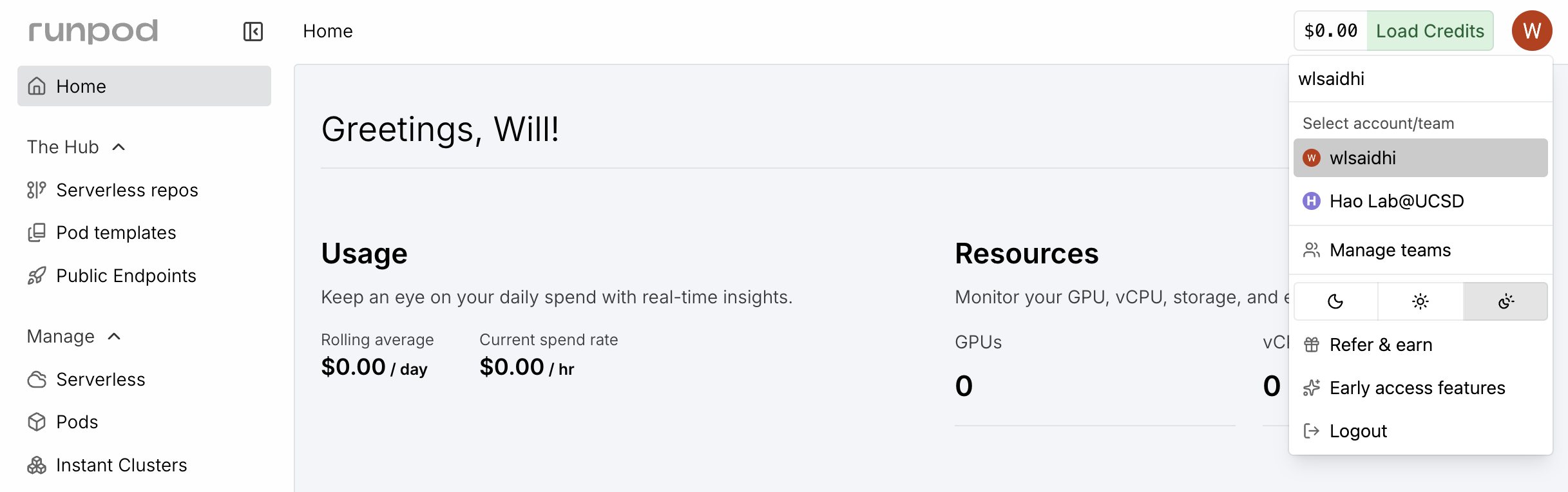
**1. Verify your account**
Make sure you're logged into the right RunPod account before spending credits.
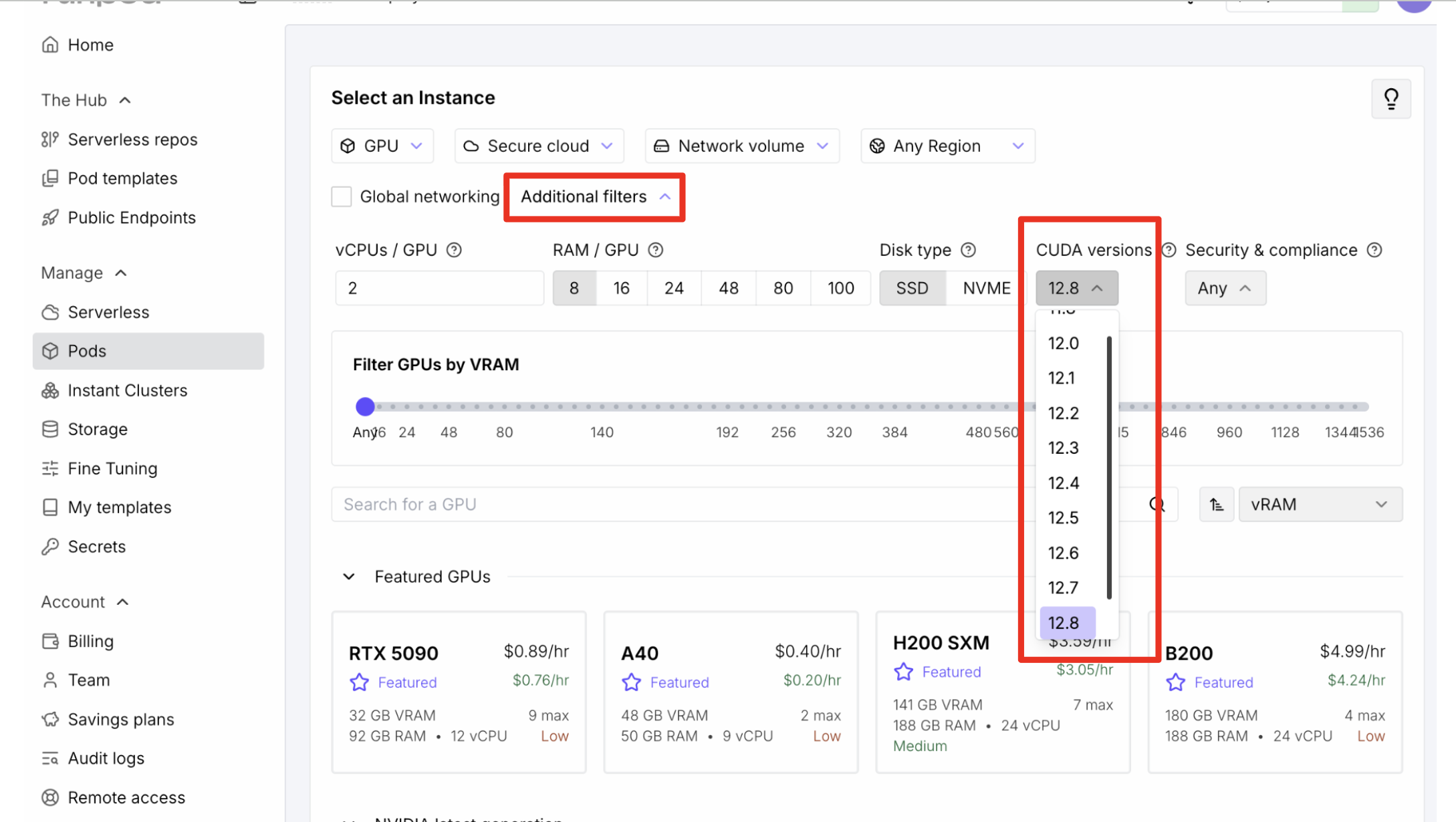
**2. Filter by CUDA version**
Use "Additional Filters" to select a CUDA version supported by the FastVideo
template.
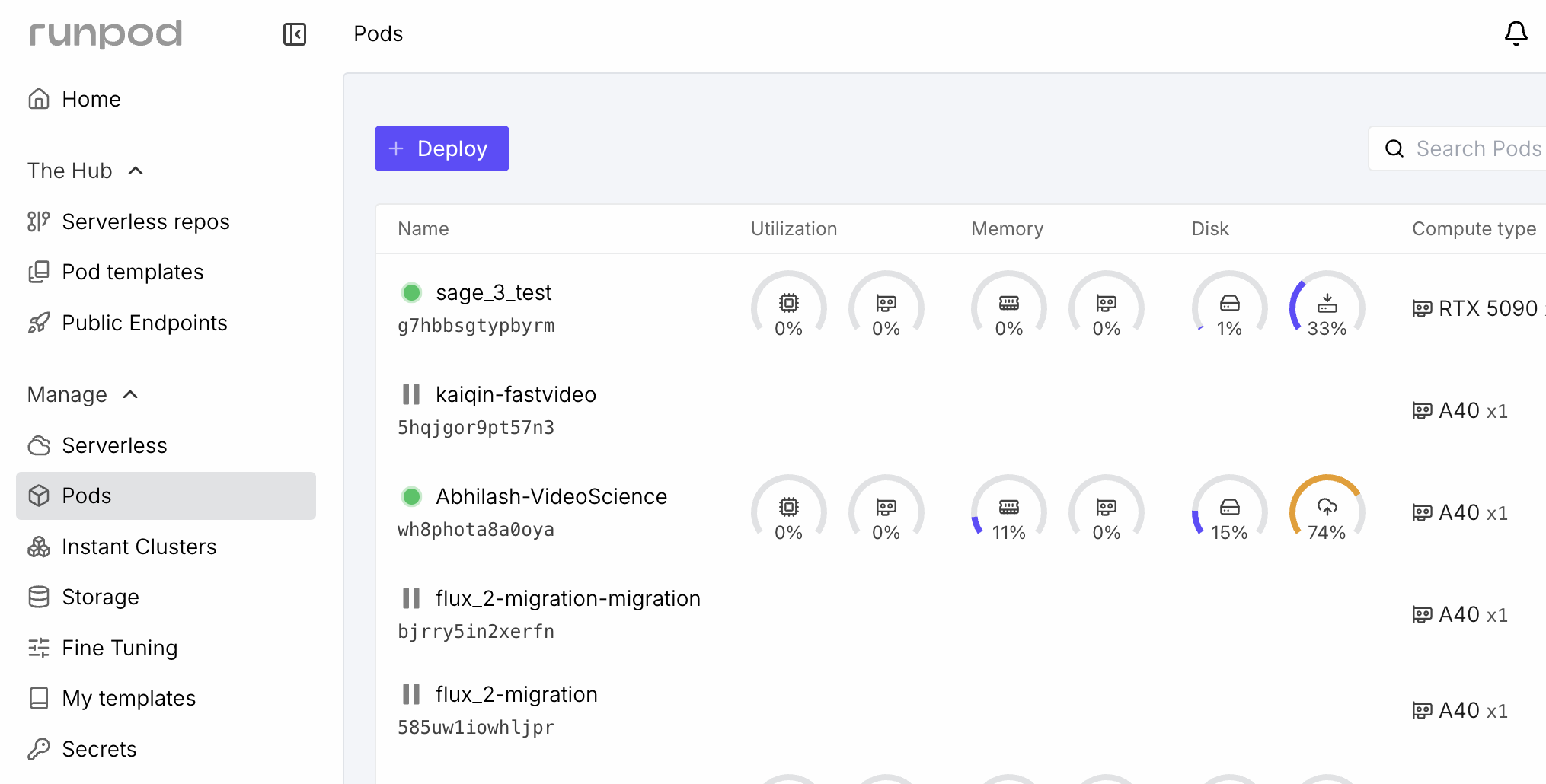
**3. Select a GPU**
Click "Deploy" and pick a GPU. See [GPU Recommendations](#gpu-recommendations) below for guidance on which GPU to choose.
**4. Pick the FastVideo template**
Select the "FastVideo" or "fastvideo-dev" Pod Template. This pulls the pre-built image that includes all dependencies, Flash Attention, and a ready-to-use `uv` environment.
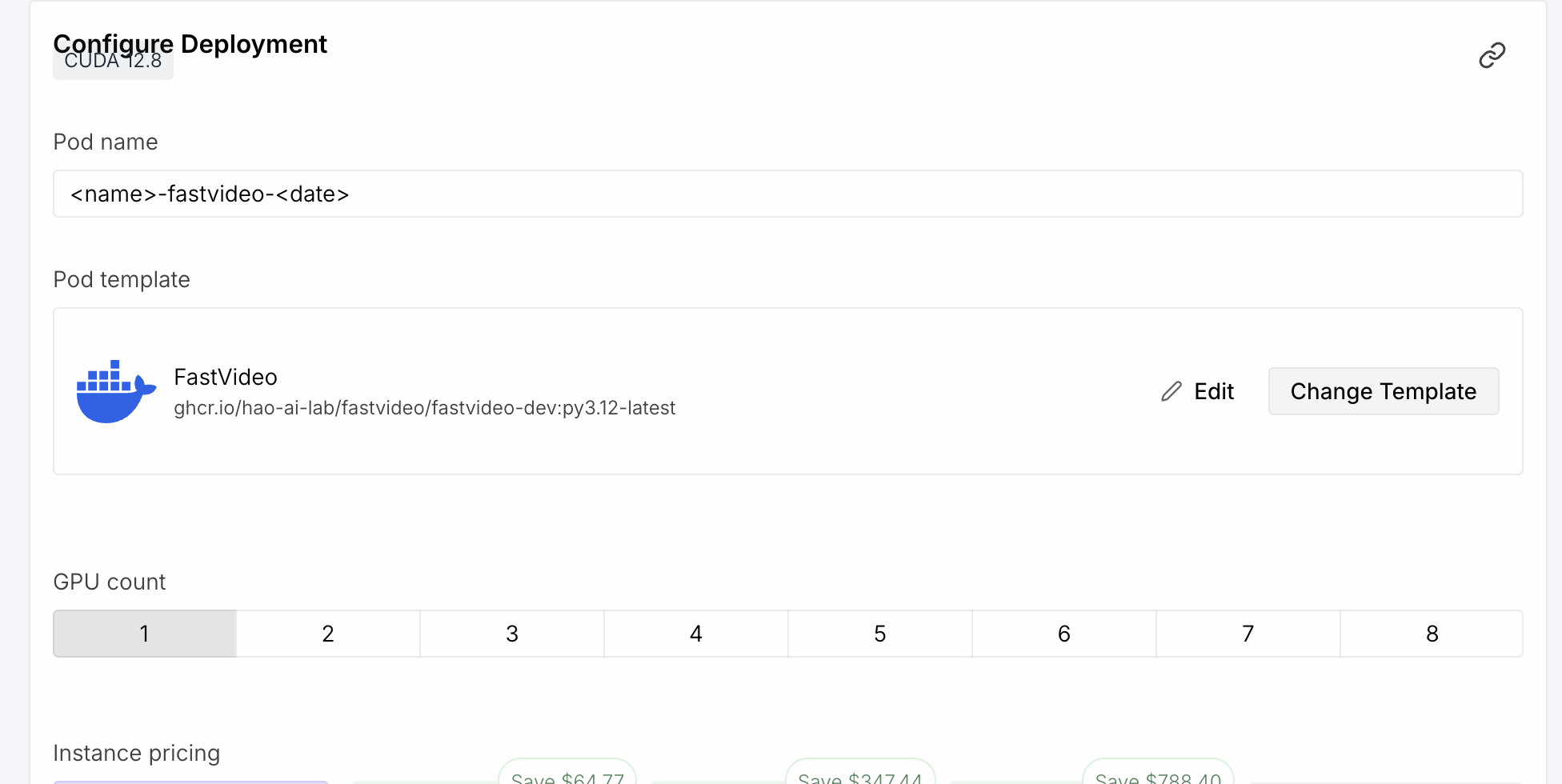
**5. Name your pod**
Use a memorable name like `yourname-fastvideo-2026-03-28`. This helps if you have multiple pods running.
**6. Add a persistent volume (recommended)**
Attach a network volume to `/root/.cache` or `/models` for storing downloaded model weights. Models can be 10-50 GB each, and re-downloading them every session wastes time and bandwidth.
**7. Deploy**
Click Deploy. The pod takes a few minutes to start while the image pulls. You'll see it transition to "Running" in your dashboard.
## Step 2: Connect via SSH {#step-2-connect-via-ssh}
Once the pod is running, find the "SSH over exposed TCP" connection string in the pod dashboard.
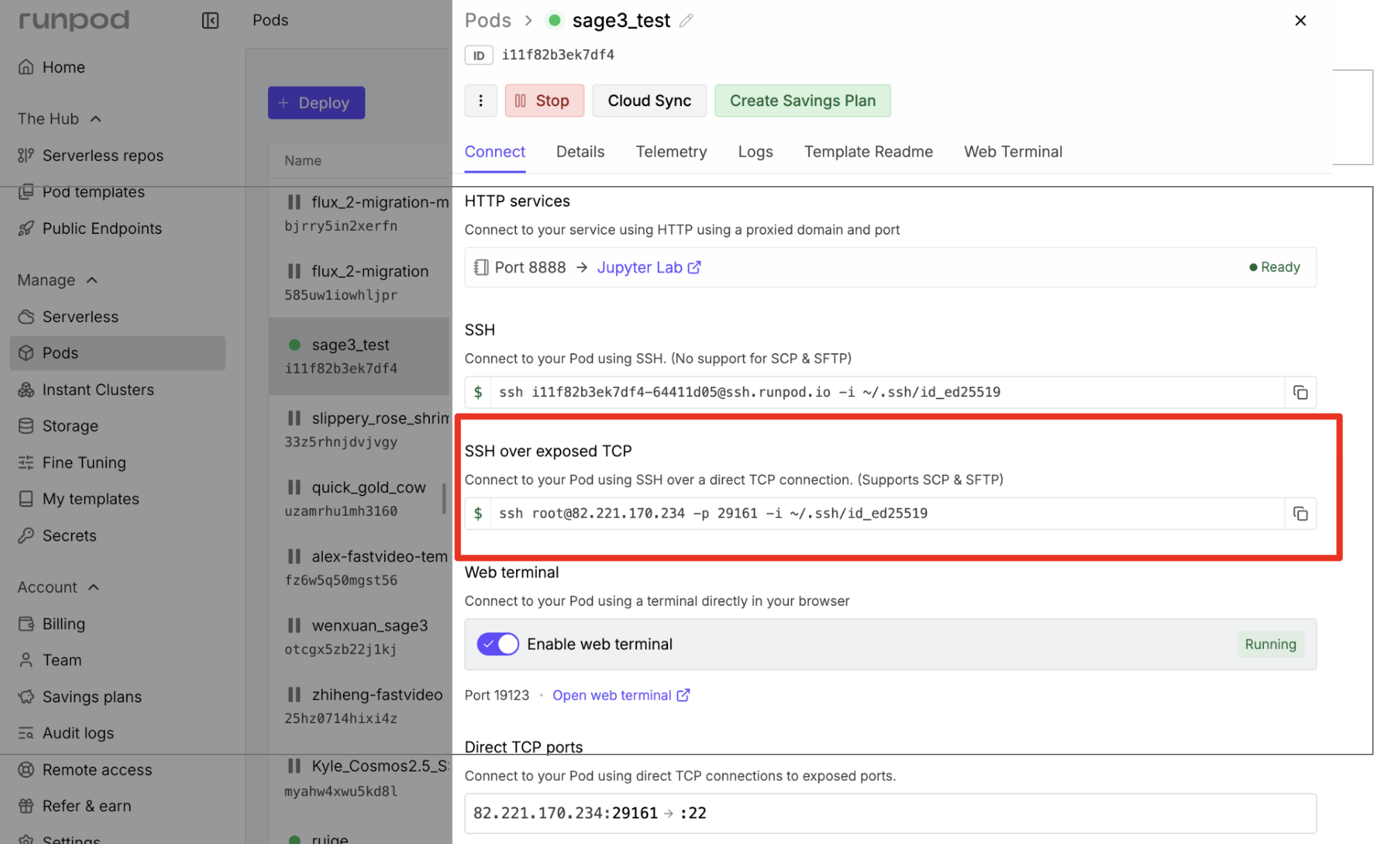
Connect with:
```bash
ssh root@ -p -i ~/.ssh/id_ed25519
```
RunPod also supports VS Code Remote SSH if you prefer an IDE.
### Custom template (advanced) {#custom-template-advanced}
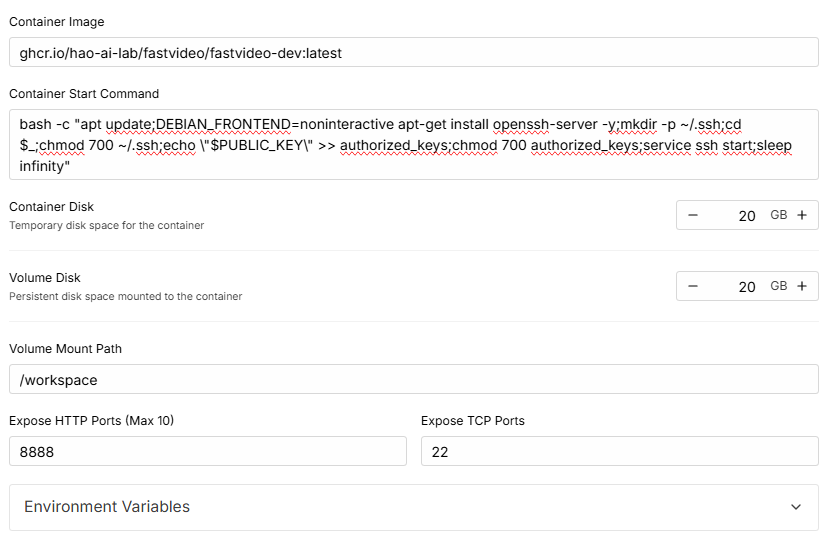
If you're setting up a pod from scratch instead of the FastVideo template, use this image:
```
ghcr.io/hao-ai-lab/fastvideo/fastvideo-dev:py3.12-latest
```
This default tag uses CUDA 12.6.3 with the `cu126` PyTorch backend. Use
`py3.12-cuda13.0.0-latest` instead when the pod specifically needs the CUDA 13
and `cu130` image.
And paste this as the Container Start Command to enable SSH ([RunPod docs](https://docs.runpod.io/pods/configuration/use-ssh)):
```bash
bash -c "apt update;DEBIAN_FRONTEND=noninteractive apt-get install openssh-server -y;mkdir -p ~/.ssh;cd $_;chmod 700 ~/.ssh;echo \"$PUBLIC_KEY\" >> authorized_keys;chmod 700 authorized_keys;service ssh start;sleep infinity"
```
## Step 3: Set Up FastVideo {#step-3-set-up-fastvideo}
After SSH'ing in, the `uv` virtual environment at `/opt/venv` is already activated (configured in `.bashrc` and `.profile`). You land in the `/FastVideo` directory.
**Clone or pull the repo**
If the pod already has the FastVideo repo:
```bash
cd /FastVideo
git pull
```
If starting from a blank pod:
```bash
git clone https://github.com/hao-ai-lab/FastVideo.git /FastVideo
cd /FastVideo
```
**Install the package**
```bash
uv pip install -e ".[dev]"
```
This preserves the PyTorch backend selected by the Docker image. The image also
includes Flash Attention and most heavy dependencies, so this is fast.
**Build the custom kernels (optional)**
VSA and STA attention kernels aren't in the Docker image by default. Build them if you're working on attention backends or need maximum inference performance:
```bash
cd /FastVideo/fastvideo-kernel
./build.sh
```
The build script detects your GPU architecture automatically. An A100 or H100 takes about 5-10 minutes.
**Verify the setup**
```bash
cd /FastVideo
python -c "import fastvideo; print('OK')"
pytest tests/ -q --no-header
```
## Development Workflow {#development-workflow}
### Editing code on RunPod {#editing-code-on-runpod}
Two common approaches:
**Option A: Edit on RunPod directly**
Use VS Code Remote SSH or `vim`/`nano` on the pod. Commit and push when you're ready:
```bash
cd /FastVideo
git add .
git commit -m "your change"
git push
```
**Option B: Edit locally, sync to RunPod**
Work in your local repo, then pull on the pod:
```bash
# On RunPod:
cd /FastVideo
git pull
```
This keeps your local tools (editor, linters) intact while running GPU workloads on the pod.
### Running linters and tests {#running-linters-and-tests}
```bash
# Lint
pre-commit run --all-files
# Full test suite
pytest tests/
# Just package tests
pytest fastvideo/tests/ -v
```
### Storing models {#storing-models}
If you attached a persistent volume, point your model downloads there:
```bash
export HF_HOME=/models/huggingface
export TRANSFORMERS_CACHE=/models/huggingface
```
Add these to `/root/.bashrc` so they persist across SSH sessions. The volume survives pod termination, so you only download models once.
### Terminating the pod {#terminating-the-pod}
When you're done, push any commits you want to keep. RunPod does not save pod storage after termination.
Go to your RunPod dashboard, click "Terminate", then "Delete". A pod that's stopped but not deleted still charges you for storage. Fully delete it to stop all charges.
## GPU Recommendations {#gpu-recommendations}
| GPU | VRAM | Good for |
|-----|------|----------|
| RTX 4090 | 24 GB | Inference testing, small model fine-tuning, quick iteration |
| A40 | 48 GB | Mid-size training runs, 480p video generation |
| A100 (40 GB) | 40 GB | Multi-GPU inference, training with sequence parallelism |
| A100 (80 GB) | 80 GB | Large model training, 720p+ video generation |
| H100 | 80 GB | Heavy training, benchmarking, kernel development |
For most development work, a single RTX 4090 or A40 is sufficient and cost-effective. Use A100/H100 when you need to reproduce training results at scale or test multi-GPU features.